


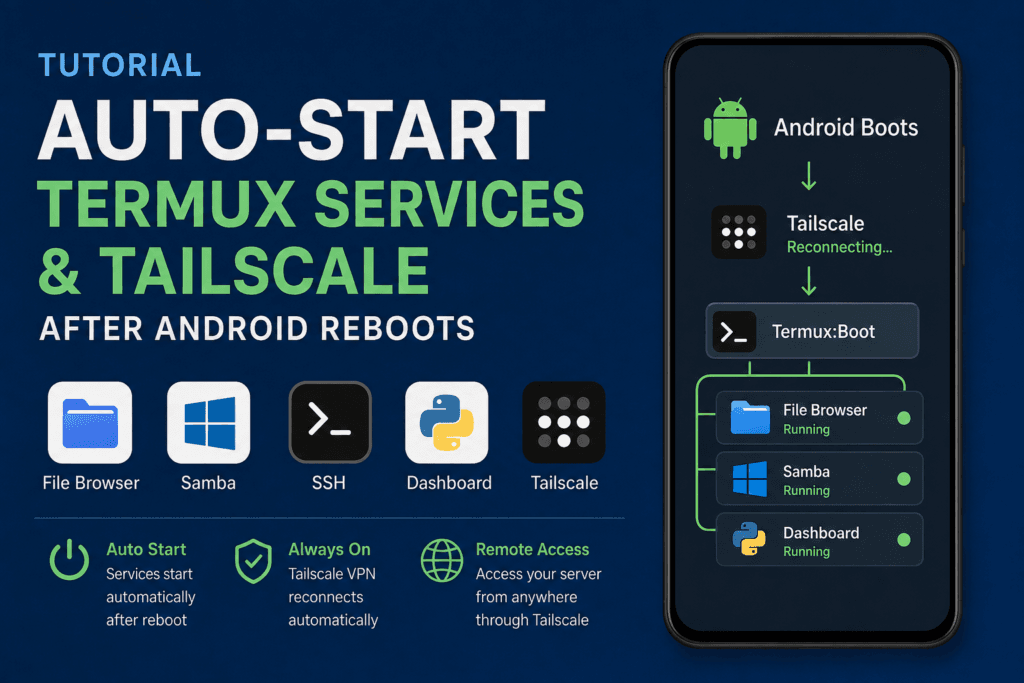
If you are using an old Android phone as a small server, manually opening every application after a reboot quickly becomes annoying.
In my setup, the Android phone runs:
- File Browser
- Samba
- SSH
- A small Python server dashboard
- Tailscale
I wanted all of these services to return automatically after the phone restarted.
The final setup looks like this:
Android boots
     │
     ├── Tailscale reconnects
     │
     └── Termux:Boot
            ├── File Browser
            ├── Samba
            └── Dashboard
After configuring this, the phone can recover from a reboot or power failure without touching the screen.
This was especially useful because the touchscreen on my Honor phone no longer works.
1. Install Termux:Boot
If you installed Termux from F-Droid, install Termux:Boot from F-Droid as well.
It is important that Termux and its companion applications come from the same source.
For example:
Termux        → F-Droid
Termux:Boot   → F-Droid
Termux:API    → F-Droid
Do not mix differently signed versions from unrelated sources.
After installing Termux:Boot, open it once.
Android needs to register the application before its boot receiver can work.
2. Create the Boot Directory
Inside Termux:
mkdir -p ~/.termux/boot
Check it:
ls -la ~/.termux/boot
Every executable script placed here can be launched when Android boots.
I use numbered filenames so the startup order is easy to understand:
~/.termux/boot/

10-filebrowser
20-samba
30-dashboard
3. Automatically Start File Browser
If File Browser is already working, use the same command you normally use to start it.
Create:
nano ~/.termux/boot/10-filebrowser
A typical script may look like:
#!/data/data/com.termux/files/usr/bin/sh

termux-wake-lock

sleep 10

if ! pgrep -x filebrowser >/dev/null 2>&1; then
    filebrowser -d "$HOME/filebrowser.db" &
fi
Your own File Browser command may be different depending on its port, root directory, and database location.
Use the command that already works in your setup.
Save it and make it executable:
chmod +x ~/.termux/boot/10-filebrowser
4. Automatically Start Samba
My Samba server runs inside Termux on port:
4445
Create:
nano ~/.termux/boot/20-samba
Add:
#!/data/data/com.termux/files/usr/bin/sh

termux-wake-lock

sleep 15

if ! pgrep smbd >/dev/null 2>&1; then
    smbd -D -s "$PREFIX/etc/samba/smb.conf"
fi
Then:
chmod +x ~/.termux/boot/20-samba
The delay is useful because Android needs some time to initialize storage and networking after boot.
5. Test the Samba Boot Script
You do not need to reboot immediately.
Stop Samba:
pkill smbd
Check:
pgrep -a smbd
There should be no output.
Now manually run the boot script:
~/.termux/boot/20-samba
Check again:
pgrep -a smbd
You should see the Samba processes.
This is a good way to verify a boot script before relying on it.
6. Automatically Start a Python Dashboard
I also created a small Python dashboard that shows:
Battery
RAM
Storage
Uptime
Wi-Fi status
System load
File Browser status
Samba status
SSH status
The dashboard runs on:
http://PHONE_IP:8090
To start it automatically, create:
nano ~/.termux/boot/30-dashboard
Add:
#!/data/data/com.termux/files/usr/bin/sh

sleep 20

if ! pgrep -f dashboard.py >/dev/null 2>&1; then
    cd "$HOME/dashboard"
    nohup python dashboard.py > dashboard.log 2>&1 &
fi
Make it executable:
chmod +x ~/.termux/boot/30-dashboard
After boot, you can check it with:
pgrep -af dashboard.py
If there is a problem:
cat ~/dashboard/dashboard.log
7. Use termux-wake-lock
Android may put applications to sleep when the screen is off.
For services that need to remain available, Termux provides:
termux-wake-lock
That is why I put it inside my main server boot scripts.
You can also run it manually:
termux-wake-lock
To release it:
termux-wake-unlock
This does not replace Android battery settings, but it helps keep Termux alive.
8. Allow Termux to Run in the Background
Some Android manufacturers aggressively stop background applications.
On my Honor phone I changed the application launch settings for Termux.
Depending on your Android version, look for something similar to:
Settings
→ Battery
→ App launch
→ Termux
Disable automatic management and allow:
Auto-launch
Secondary launch
Run in background
Also disable battery optimization for Termux if your phone provides that option.
Without this, Android may kill your server processes after some time.
9. The Tailscale Problem
Termux services started successfully after reboot, but I encountered another problem:
File Browser      Running
Samba             Running
Dashboard         Running

Tailscale         Offline
Tailscale is an Android VPN application, so Termux:Boot does not start it.
The correct approach is to make Android treat Tailscale as an Always-on VPN.
10. Enable Tailscale Always-On VPN
Normally Android provides:
Settings
→ VPN
→ Tailscale
→ Always-on VPN
However, this option was not visible on my Honor phone.
Because USB debugging was already enabled, I configured it through ADB instead.
First connect the phone to a computer:
adb devices
You should see:
DEVICE_SERIAL device
Then set Tailscale as the Always-on VPN:
adb shell settings put secure always_on_vpn_app com.tailscale.ipn
Keep VPN lockdown disabled:
adb shell settings put secure always_on_vpn_lockdown 0
Verify:
adb shell settings get secure always_on_vpn_app
It should return:
com.tailscale.ipn
After doing this, Tailscale started reconnecting automatically after the phone rebooted.
11. Why I Disabled VPN Lockdown
Android also has:
always_on_vpn_lockdown
Lockdown mode blocks network connections when the VPN is unavailable.
For this server I did not need that.
I used:
adb shell settings put secure always_on_vpn_lockdown 0
This means the phone can still use its normal network while Tailscale is reconnecting.
12. Allow Tailscale to Run in the Background
Just like Termux, Tailscale should not be restricted by aggressive battery management.
On Honor, I allowed:
Auto-launch
Secondary launch
Run in background
for Tailscale.
Also disable battery optimization for Tailscale if available.
This combination worked well:
Android Always-on VPN
+
Background permission
+
No aggressive battery optimization
13. Reboot the Phone
Once everything is configured, reboot the phone.
Using ADB:
adb reboot
Now do not manually open Termux or Tailscale.
Wait for Android to finish booting.
Then test from another computer.
14. Test Tailscale
Ping the phone’s Tailscale IP:
ping YOUR_TAILSCALE_IP
If it responds, Tailscale has automatically reconnected.
You can also check Samba:
nc -vz YOUR_TAILSCALE_IP 4445
A successful result looks like:
Connection to 100.x.x.x port 4445 succeeded!
15. Test Samba
On macOS Finder, connect to:
smb://YOUR_TAILSCALE_IP:4445/internal
If it opens without touching the Android phone, both Tailscale and the Samba boot script are working.
16. Test File Browser
Open:
http://YOUR_TAILSCALE_IP:8080
Use the File Browser login you configured earlier.
Again, this should work without manually opening Termux.
17. Test the Dashboard
My Python server dashboard runs on port 8090.
Open:
http://YOUR_TAILSCALE_IP:8090
It should show the current server status.
For example:
HONOR SERVER                       ● ONLINE

BATTERY       MEMORY       STORAGE       UPTIME
81%           53%          13%           4h 22m

SERVICES

● File Browser
● Samba
● SSH
● Dashboard
18. Check Everything From SSH
You can also SSH into the phone and verify each process.
Samba:
pgrep -a smbd
File Browser:
pgrep -a filebrowser
Dashboard:
pgrep -af dashboard.py
SSH:
pgrep -a sshd
Check the boot scripts:
ls -la ~/.termux/boot
My directory looks roughly like:
10-filebrowser
20-samba
30-dashboard
19. If a Service Does Not Start
The first thing I recommend is running its boot script manually.
For example:
~/.termux/boot/20-samba
If that works manually but fails during boot, increase the delay.
For example:
sleep 30
instead of:
sleep 15
Some phones take longer to initialize storage after boot.
20. Make Sure the Scripts Are Executable
A common mistake is creating a script but forgetting:
chmod +x SCRIPT_NAME
Check:
ls -la ~/.termux/boot
You should see executable permissions.
For example:
-rwx------ 10-filebrowser
-rwx------ 20-samba
-rwx------ 30-dashboard
21. Back Up the Working Boot Configuration
Once everything works:
mkdir -p ~/server-backup
Then:
cp -r ~/.termux/boot ~/server-backup/
I also backed up my Samba configuration:
cp "$PREFIX/etc/samba/smb.conf" ~/server-backup/
and File Browser database:
cp ~/filebrowser.db ~/server-backup/ 2>/dev/null
If something breaks later, rebuilding the server becomes much easier.
Final Result
After all of this, my old Android phone behaves much more like a dedicated Linux server.
Power failure / reboot
          │
          ▼
      Android boots
          │
    ┌─────┴───────────┐
    │                 │
Tailscale         Termux:Boot
Always-on VPN          │
    │             ┌────┼─────────┐
    │             │    │         │
    │        FileBrowser Samba Dashboard
    │
    └─────────────┬──────────────
                  │
                  ▼
          Remote access restored
I no longer need to touch the phone after rebooting it.
Tailscale reconnects automatically, Termux starts the server services, and I can access the phone remotely through Samba, File Browser, SSH, and the dashboard.
For an Android phone being reused as a home server or NAS, this is one of the most important parts of the whole setup.